This page displays products detail information for the current
subcategory variant of the current Catalogue. For every product
it shows the possible indications of use and compatibility,
optional, modifications, etc which allow the user to choose,
in relation to the reference number, which product code is
to be used for a particular vehicle.
Clicking on a product code displays this product’s price-list
information and possible replacements.
From this page it is also possible to select products to add
to the shopping basket.
The following gives explanations of the various areas which
make up the page.
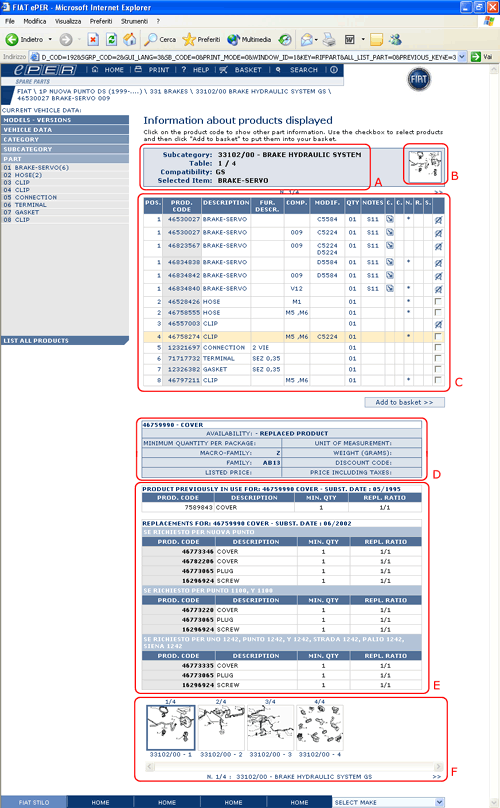
A
Table heading. Gives the subcategory of the page,
the number of variant ( e.g.: /00), compatibility
information (e.g: M1,M2) and the progressive order
of the table..
B
Clickable
area which allows activation of the corresponding
drawing (see section
5.3.8)
C
This
table contains detailed information about products.
For an explanation of various columns of this
table see section “Information contained
in the product table” below
D
Price
list information.
E
If
the selected product has been involved in some
replacement, this area contains replacement details,
such as: product code for new parts, date of replacement,
etc..
F
Drawings
list. This area contains a sequence of all drawings
(in a reduced format) that have been previously
requested by the user. Depending on the choices
made in the category and subcategory selection
this area can contain:
• A list of all the drawings in a category (e.g.:
274)
• A list of all the drawings in a subcategory
(e.g.: 27404)
• A list of all the drawings in a specific subcategory
(e.g.: 27404/01) }
Moving the mouse over each image displays a popup
window with the complete description of the drawing
and its compatibility information (e.g.: “GD:
right-hand drive”)
This list can contain many images accessible by
use of the scroll bar underneath the list
Information contained in the product table
The following explains the meanings of that various columns
which comprise the table of product.
If the lines of the table are displayed in a poorly visible
colour (e.g.: grey) this means that, based on the previously
selected vehicle characteristics (e.g.: Engine Version, Drive
L/R, Production Date, etc.) the corresponding product cannot
be used for the vehicle.
Even if the lines, on the other hand, are displayed in the
normal colour it is always necessary to ‘manually’ verify
the compatibility of the product for the current vehicle by
checking the Compatibility and Modifications
fields (see the explanation later in this document)
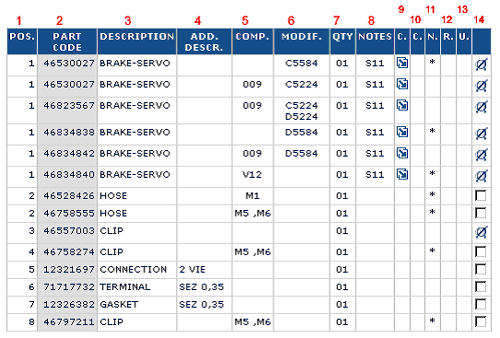
1
Item
Position. This number indicates the position
of the product in the corresponding drawing map
2
Product
Code. This is the ordering code of the
product. Clicking on this field displays detailed
price-list information about the product and the
possible substitutions relating to this product.
3
Description.
Description of the product
4
Further
Description. This field can hold other
information about the product
5
Compatibility.
Possible information defining the applicability
of the product (in relation the previously selected
vehicle) is displayed in this field.
For example: engine version (e.g.: M5) , vehicle
version (e.g.: V12) , the presence of optional
variations (e.g.: 009=air conditioning), driver’s
side (e.g.: GD=right-hand drive), etc.
The compatibility codes can be joined together
in formulas using the following characters:
‘,’ (comma) meaning ‘or’
‘+’ (plus) meaning ‘in
combination with’
For a clearer understanding of this field let’s
look at some examples of formulas and their correct
interpretation:
M1,M2 : product applicable only
to engine versions M1 or M2 V1+009: product applicable only
to version V1 if the optional variation 009=air
conditioning is present GD(M1,M3): product applicable
to vehicles with right-hand drive and engine versions
M1 or M3
Positioning the mouse pointer over the compatibility
code causes the system to display a description
in a popup window. Use the
icon in the top-right menu to view descriptions
of all the codes used in the page.
6
Modifications.
In this field you will see information relating
to the applicability of the product based on the
modifications made to the current vehicle model.
Every modification is represented by a four-digit
number (e.g.: 5584) preceded by either ‘C’ or
‘D’, where:
‘C’ means that the relevant product
was discontinued following the realisation of
the modification (activation of the modification)
‘D’ means that the relevant product
was introduced following the realisation of the
modification (activation of the modification)
The activation of a modification can be a date,
an engine stamp or a chassis number. Placing the
mouse pointer over the code causes the system
to display the description of the activation in
a popup window. Use the
icon in the top-right menu to view descriptions
of all the codes used in the page.
7
Quantity.
Number of units of the product used.
8
Notes.
This field displays the code of a note containing
further information about the product. Placing
the mouse pointer over the code of the note causes
the system to display the description
9
Components.
When
icon is present it means that the related product
is a composite of a series of components. Clicking
on the icon takes you to a details page showing
a table of the components.
10
Colour.
This field can contain possible colour codes (for
example: in the coverings subcategory)
11
New
product. If there is the character ‘*’
(astesrisk) in this field it means that the product
is ‘new’, that it has been inserted only in the
most recent version of the catalogue.
12
Reconditioned
. In this field there can be the code of a reconditioned
product equivalent to the original product
13
‘Scrap’
code . If there is a code in the previous
field (reconditioned) this field gives the product
code of the equivalent scrap product
14
Carrello.
Questo campo contiene solitamente una
casella utilizzata per marcare i prodotti da aggiungere
al carrello. Se al posto della casella viene visualizzata
un icona significa che il prodotto non può essere
ordinato. In questo caso posizionare il puntatore
del mouse sopre l’icona per avere informazioni
più specifiche.
Cliccando sul bottone ‘ Aggiungi al carrello’
il sistema inserisce nel carrello tutti i prodotti
che nella tabella sono stati marcati.







 icon in the top-right menu to view descriptions
of all the codes used in the page.
icon in the top-right menu to view descriptions
of all the codes used in the page. icon is present it means that the related product
is a composite of a series of components. Clicking
on the icon takes you to a details page showing
a
icon is present it means that the related product
is a composite of a series of components. Clicking
on the icon takes you to a details page showing
a