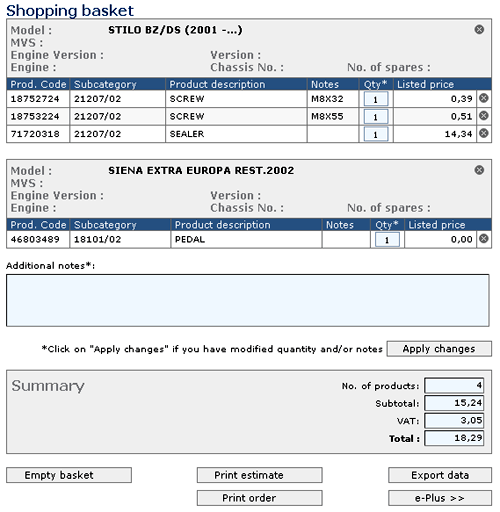
The “Shopping basket” page contains the products selected
by the user during the session.
You can go to this page at any moment by clicking the “basket”
icon always present on the menu at the top of every page.
The products are organised into categories that carry in their
heading the vehicle characteristics defined at the moment
of product selection. For each product the system shows the
quantity, the price in the currency of the pre-selected country
and the specific subcategory in which the product was selected.
Every product is placed in the shopping basket with a quantity
of one. To increase the quantity insert a new value in the
relevant field and press the “Apply changes” button
To remove a product from the basket click the
icon next to the product.
To remove an entire group of products click the
icon in the top right corner of that group.
To insert notes which are then printed on the order use the
relevant field “Notes” displayed above the summary field and
press the “Apply changes” button.
The lower part of the page shows a series of buttons which
correspond to other functions available for the shopping basket,
described in the following sections.
5.10.1. Print estimates
Clicking on the “Print estimate” button causes
the system to display a pdf format document with the shopping
basket content. To use this function it is necessary to have
the program Acrobat Reader installed
5.10.2. Print orders
Clicking on the “Print order” button causes the system to
display a new window containing a pdf document with a list
of all the products present in the shopping basket with the
relevant description and quantity. In contrast with the “Print
estimate” function, this print does not display products grouped
by vehicle nor further data, such as; the subcategory in which
they were selected.
To use this function it is necessary to have the program Acrobat
Reader installed
5.10.3. Export data
This function allows you to export the contents of the shopping
basket to a file on the user’s PC so that the same file can
then be potentially used to import the contents of the shopping
basket into another application used by the dealer
To proceed:
•
Click
on the “Export data” button. At this point the
system will display a dialogue box with several
buttons.
•
Click
on the “Save” button. The system will then display
a new dialogue box in which you should choose
a location on the local PC in which to save the
file containing the contents of the shopping basket.
•
•
Select the location and name of the file to be
saved locally, for example; “c:\basket.txt”, and
confirm this with the relevant button
The file produced by this function is in text format and contains
one line for each product present in the shopping basket.
Every line contains the following fields, separated by the
character “|” (Pipe):
PRODUCT CODE | PRODUCT DESCRIPTION
| LISTED PRICE
To illustrate the file’s format we include the following example
of a possible list of content:







 icon next to the product.