ePER, in the CDROM/DVD versions,
can be used both locally (installing and using the program
on one PC) and shared on a small business-wide network (local
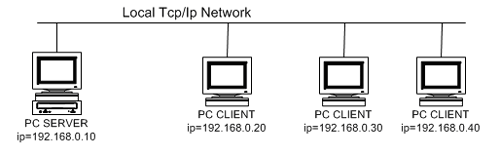
network). The following diagram illustrates an example of
installation on a local network:
In which:
PC SERVER: Is the PC where ePER
has to be installed using the setup procedure on the CDROM/DVD.
Once installed on the PC SERVER, ePER
can be used both on the same PC SERVER (by clicking on the
program icon) and, simultaneously, on the PCs connected to
the local network (PC CLIENTS).
PC CLIENTS: Are the PCs on which ePER
can be accessed without the necessity of installation. The
PC clients need only be equipped with Internet Explorer Ver.
5.0 or above and must be connected via tcp/ip to the PC SERVER
The procedure for installing and using ePER
in this shared mode is as follows:
1)
Install ePER
normally on the PC SERVER following the instructions
in paragraph 2.1
2)
Run ePER
on the PC SERVER. In order to use the application
on the PC CLIENTS it is necessary that ePER
be running on the PC SERVER (see the following
chapter: “Starting the program”)
3)
3) On the PC CLIENTS
open Internet Explorer and in the address field
type the address and tcp port of the PC SERVER.
For the example diagram the server address would
be the following:
Note: in the installation phase ePER
is configured to use the tcp port 8080. However,
it is possible to modify this setting in case
the port is already in use by the PC SERVER for
other applications.
The number of PC CLIENTS that can simultaneously use ePER
resident on a PC SERVER depends on the configuration (memory
and processor speed) of the PC SERVER. In any case it is unadvisable
to have more than five clients using the program simultaneously.
Also, the terms of the ePER user
contract should be checked (number and license type) to avoid
violations of the author’s rights.